

Updated 18/2/26 – Added information about latest patch and free re-release. A big thank you to oldunreal.com for keeping this game alive.
After graduating from university, I was lucky enough to land a job with a local games company. I have fond memories of those days, mostly because we got a whole hour for lunch. Few of us actually ate lunch during that hour, because games were permitted on the LAN. While all sorts of games were tried, my favourite was always Unreal Tournament 2004. Featuring a great range of weapons, vehicles and game modes, UT is, for many of us, the pinnacle of competitive first person shooter games. While Unreal Tournament 3 is the latest in the franchise, The more colourful 2004 edition remains a fan-favourite despite its age.
Installation
Unreal Tournament 2004 is now officially and legally available for free. If you’re installing it for the first time, simply visit this page on the website “Old Unreal”, to download the full installer, which will download the full game, bonus packs and content and of course the latest patch. The download is around 3GB in size.
The only issue we noticed with this installer was that it didn’t create a Start Menu shortcut, so you will need to do that yourself, or simply click the “UT2004” shortcut from whichever folder you installed the game to.
If you want to install from an original DVD, then UT2004 should install on a modern PC without any issues, provided you still have an optical drive of course. To install from the retail DVD version, simply put your game DVD into your computers optical drive and follow all on-screen prompts. If the games autorun prompt does not appear, browse to the DVD in Computer/This PC and run the Setup.exe file manually.
Versions sold on Steam and GOG should also install without issues. Please see the “Patching” instructions below for details of how to bring these versions up to date.
Patching
If you installed the game using the download link from Old Unreal then you already have the latest patch and don’t need to do anything more.
If you have an older installation of the game things are a little more complicated. First of all you need to install patch 3369 and the Editors Choice Edition (ECE) bonus pack if you haven’t done so already. We recommend downloading and installing the UT2004 Mega Bonus Pack, which includes the patch and a nice selection of bonus content (including all content released in the Editors Choice Edition upgrade). Once you’ve downloaded this pack, simply double click on it and follow the on-screen prompts and it will install automatically.
You can now proceed to install patch 3374, which can be downloaded from the Github page here. Patches are available for Windows, Linux and Mac, including for the first time a 64 bit Macintosh executable.
There is one last step to update an older installation. The file “ut2004.ini” which lives inside the “System” directory within the games folder must be edited and updated. Following the instructions on the Github page under “Updating Existing Client Installations”, you should first make a copy of the whole system folder (just in case you ever want to revert to the last official build of the game).
With the original folder backed up, open the System folder and find the file called “Ut2004.ini”.
Edit UT2004.ini using your favourite text editor. In Windows you should be able to right click on the file and choose “edit in Notepad”. If you’re having trouble finding the file, try going to the “View” menu in File Explorer and choosing “Show->File name extensions”.
Find the line of text in this file that reads:-
MainMenuClass=GUI2K4.UT2K4MainMenu
and change it to read (copy and paste the text in directly):-
MainMenuClass=GUI2K4.UT2K4MainMenuWS
In Windows Notepad, for instance, you can press Control (ctrl) and F to find text in a file.
Next, use the find facility in your text editor to find the line that reads:-
[IpDrv.MasterServerLink]
In this section, delete any line that begins “MasterServerList=” and instead, replace it with the following:-
MasterServerList=(Address="utmaster.openspy.net",Port=28902,Group=0)
MasterServerList=(Address="ut2004master.333networks.com",Port=28902,Group=1)
MasterServerList=(Address="ut2004master.errorist.eu",Port=28902,Group=1)
MasterServerList=(Address="ut2004master.gonespy.com",Port=28902,Group=1)
MasterServerList=(Address="master.frag-net.com",Port=28902,Group=1)
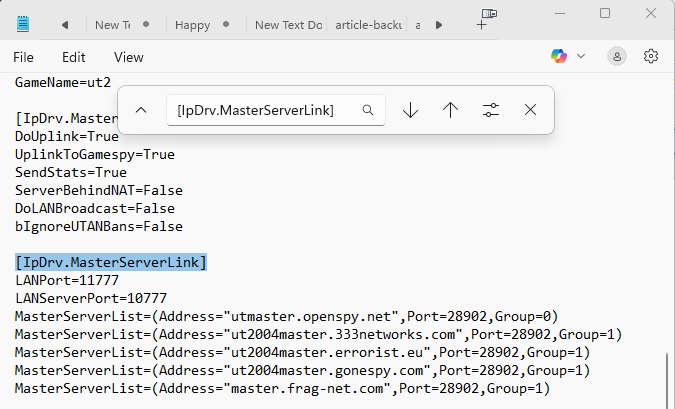
Be sure to save the file when you are done editing. If you make a mistake you can simply copy in the file again from the backup directory you made and try again.
Tweaking visual quality
No matter which version of the game you installed, before you load up your rocket launcher, you should take some time to tweak the games visual quality settings. Launch UT2004 and from the main menu, choose “Settings”. Then, from the options at the top of the screen, choose “Display”. You should then see the options shown below.

The most important options are:-
Resolution – Set this to whatever resolution your monitor supports. With the latest patch you can select widescreen or even ultra widescreen resolutions, though ultra widescreen isn’t officially supported and may have issues.
Full Screen – Typically you will want this ON for the most immersive experience.
Brightness, Gamma and Contrast – Set these to taste. Not too bright else you will lose detail in the brightest part of the image.
All other settings – Generally you can set these on High, Highest or Full for most modern PCs, certainly for any gaming PC. The game will say a naughty word if you do this, as if in shock, but most modern PCs can cope. If you find the game is running slow, go back to the defaults and turn the settings up more gradually until you find a balance between quality and performance.
Tweaking sound quality
To change sound options, choose “Settings” from the games main menu and then choose “Audio” from the options at the top. There aren’t so many options to configure here, but pay attention to the “Audio Mode” setting. Like many older games, UT2004 supported hardware accelerated audio and special effects for users who had suitable Creative Audio sound cards. The “H/W 3D Audio” and “H/W 3D Audio + EAX” options won’t normally work on Windows Vista and later, but if you have Creative ALchemy or similar software, you can use this software to restore full hardware audio capabilities to the game. When using ALchemy, you should install it to the System sub folder within your UT2004 game folder.
UT2004’s audio engine is based on OpenAL which should work well on modern PCs, even without ALchemy or Directsound availability, so if you have issues, try changing this setting to “3D Audio” instead.
Multiplayer
UT2004 is all about the multiplayer. Thanks to the latest 3374 patch, the multiplayer functions still work perfectly. Not only that, but at most times of day there are a number of players online to play against too. To play multiplayer, simply choose “Join Game” from the main menu. If you get an error message about the Windows Firewall blocking the game when you try to connect to multiplayer, see the troubleshooting notes.
At this point you should see several options including “LAN” (play on your home network) and “Internet”. Click on “Internet” and then choose a game type from the drop-down box. Look for a server with some players online and click on it to connect.
You can also play this game on your home network (LAN). Grab a few older PCs, install the game for free and throw yourself a little LAN party, it’s awesome fun! One computer needs to be the host, this should be the most powerful PC, while the other computers connect as guests. On the main menu click on “Host Game” to host your game, then the other computers simply need to click on “Join Game” and select “LAN”. You can host your own games over the internet too, though you may need some networking know-how to open/forward ports on your router. Alternatively you can just arrange to meet on one of the many public UT2004 servers.
Other notes
UT2004 has a huge amount of user created content available for it. Typically if you connect to a server that has content that your local PC lacks it will download automatically.
Troubleshooting
Crosshairs/aiming is jittery – Note this should not be an issue in the latest patch. If aiming in the game feels jittery, especially when trying to line up a precise shot, it’s probably due to mouse smoothing. You can turn this off by editing the user.ini configuration file. First of all, browse to the System sub-folder within your UT2004 game folder (by default, that’s under C:\UT2004, or C:\GoG Games\UT2004 for the GoG version). Locate a file called “user.ini” and open it in Notepad or your favourite text editor.
look for the section beginning [Engine.PlayerInput]. Firstly, find the line that says MouseSmoothingMode and change it to MouseSmoothingMode=0. Then, find the line that begins MouseSmoothingStrength and change it to MouseSmoothingStrength=0.000000. Save the file when you’re done editing it, that should make aiming in the game a lot more precise, especially with modern high DPI gaming mice.
Windows firewall error when trying to start an online game – Note this should affect legacy PCs only – If you get this annoying error every time you try to start a multiplayer game, follow these steps. First of all, browse to the System sub-folder within your UT2004 game folder (by default, that’s under C:\UT2004, or C:\GoG Games\UT2004 for the GoG version). Find the file called UT2004.ini and open it in Notepad or your favourite text editor. Find the section that begins [Core.system] and directly above it, copy and paste in the following text:-
[FireWall]
IgnoreSP2=1
Save the file once you have edited it and start the game again, you should now be able to connect and play online.
Screenshots
Click on any screenshot to enlarge it.


Comment:First of all, browse to the System sub-folder within your UT2004 game folder (by default, that’s under C:\UT2004, or C:\GoG Games\UT2004 for the GoG version). Locate a file called “UT2004.ini” and open it in Notepad or your favourite text editor. If you can’t find this file, make sure you have tried to launch the game at least once. Once you have the ini file open, find the line that reads “ReduceMouseLag=True” and replace it with “ReduceMouseLag=False” (do not copy the quotation marks). Save the file and then exit your text editor. You should now be able to launch UT2004 on your new Windows 10 PC no problem LOOKS GOOD DID ALL THAT DOESN’T WORK PLEASE HELP ME
What error did you get? I ran UT2004 a few days ago on Windows 10 and had no problems.
I went from windows 7 to 10 and after installing the game I wound up with 2 problems. I lost the zoom feature for the scope and the transporter does not work properly at all. Any help for these two problems.
It works smoothly on mac
have it since a long time