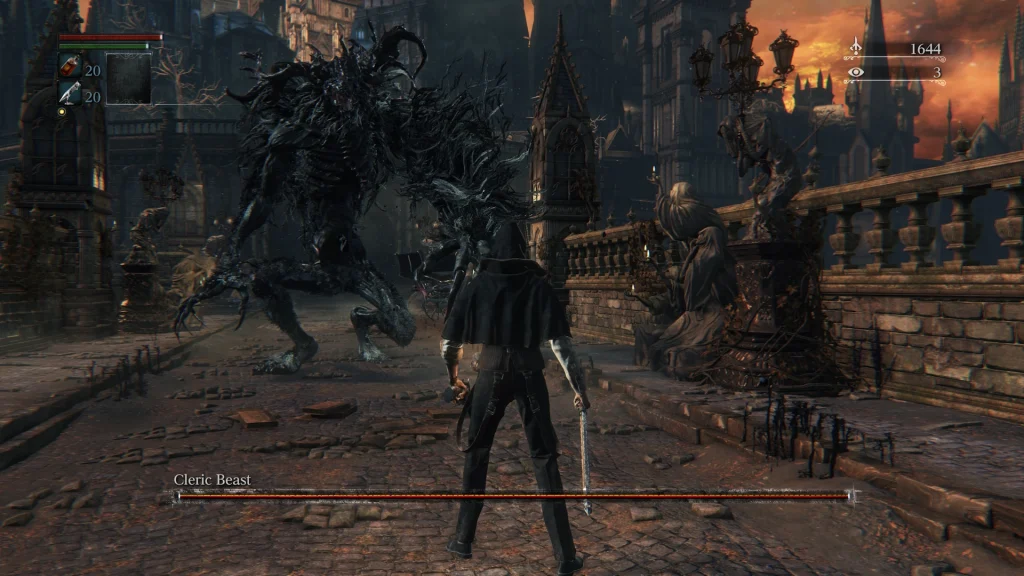
Something is rotten in the city of Yharnam. In fact, a great many things are rotten but they are the least of your worries, because everything that is left alive wants to end your life with a fierce passion. This 2015 gothic horror action game took gamers by storm when it released onto the PlayStation 4. Presenting a high, often brutal level of challenge while making the world compelling and fascinating to explore, got millions of players hooked. Despite critical and commercial success, the game has remained locked to the console, with no apparent plans for a remaster or re-release.
Now however, thanks to some amazing developments with PS4 emulation, Bloodborne can unofficially run on all kinds of PC hardware. Not only that, but the power of modern gaming PCs can enhance both visuals and frame rate in the game. These enhancements go beyond what is offered even when playing the game on Sony’s more powerful PS5 console. If that sounds like a bloody good time, then check out not one, but two videos from the RetroRenew YouTube channel, where Lewis goes through getting Bloodborne running on everything from a powerful gaming PC to a humble Steam Deck.
Video Notes
We recommend watching both videos, even if you only plan on installing on a gaming PC and not a handheld. There are some tips covered in the second video that will help no matter what system you decide to play on.
Getting Bloodborne
Since the game remains stubbornly bound to the PS4 console, the only legal way to obtain a copy to run on your PC is to dump your disc via a jailbroken PS4 or PS5 console. If you have access to this setup, there’s a tutorial here on how you can extract the game files.
Note that we’re not legal experts and can’t say for sure that using your game disc in this way is fully compliant with the law in whatever jurisdiction you happen to be in.
Bloodborne Launcher
The Bloodborne launcher (BBLauncher) is the main tool you will use to run the game on the PC and the videos go through initial setup and configuration in some detail. You can download the tool here. We recommend the latest release version, rather than the pre-release.
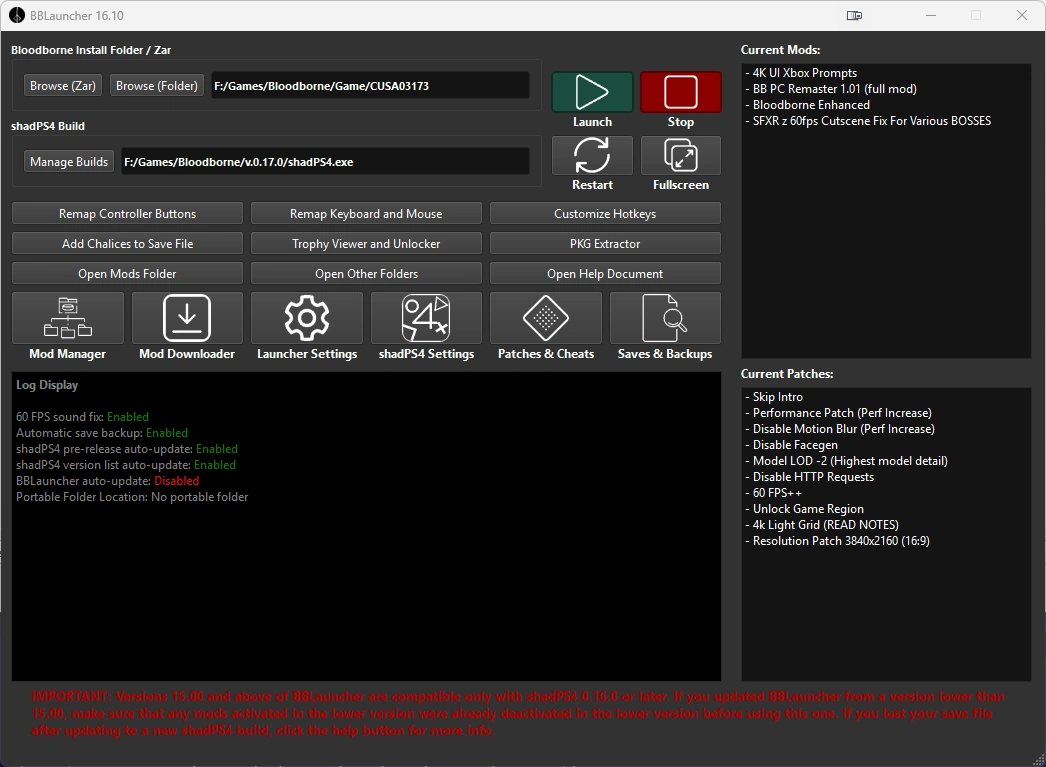
Setup of the launcher is covered in some detail in the videos. If you run into any issues, check the troubleshooting notes below.
Standard vs “no UAC” version – If you are running Windows you might be confused as to the difference between the standard launcher and the so-called “No UAC” version. If you’re a security conscious Windows user, choose the no UAC version and it won’t run itself as administrator every time you start it. The downside to this is that symbolic links aren’t supported for mods, so the mod manager has to copy files instead, taking up more storage space.
Managing builds – In the video, Lewis uses the “pre-release” build of the ShadPS4 emulator. Since the video was recorded the pre-release build has moved on several iterations. You may want to use the “manage builds” option and use version 17 instead, or simply experiment and find which build works best for you. The pre-release version is updated frequently and may include new bugs, so if you find a pre-release build that works well for you, think carefully before upgrading it.
Mod Downloader issues – The Mod Downloader may have difficulty downloading some of the bigger mods and you may need instead to install them manually. Any mod not featured on the Mod Downloader will also need to be downloaded manually. This is covered in the second video at timestamp 4:07.
Usually, it’s simply a case of downloading a mod from somewhere like Nexus Mods and then extracting it. Once extracted, copy the files to the BBLauncher/Mods folder (NOT the Mods-Active folder). The mod should show up in the Mod Manager where you can activate it to install it.
The exception to this is Bloodborne Enhanced. To install this mod, first download it, then extract it, then run the BBEnhancedInstaller.exe and install it to the mods folder in your BB Launcher.
Conflicting mods – Some of the mods on this list will give you a warning of conflicts when installed. However it appears to be safe to ignore this warning. We installed the mods in this order and everything seemed to work fine.
- BB PC Remaster
- Bloodborne Enhanced
- 4K UI Prompts
- 60fps cutscene fix
For more complex mods, like randomisers, you may need to use a special tool to merge two mods together, but this isn’t something we’ve experimented with.
Mod Updates
If there’s an update patch to a mod, we recommend deactivating the mod, installing the update (according to the mod authors instructions) and then reactivating it again.
Patches and Cheats
For quick reference, here are our recommended options for the “Patches and Cheats” section in BB Launcher. See the videos for more specific recommendations.
- Skip Intro – This skips the Sony and From Software logos on startup, not the games intro cinematic
- Performance Patch (Perf Increase)
- Disable Motion Blur (Perf Increase)
- Disable Facegen (see “Character creator and vertex explosions” below)
- Disable HTTP Requests
- 60 FPS ++
- Unlock Game Region
Depending on your PC, you should also configure the following options:-
- For a fast PC, choose “Model LOD -2 (Highest model detail)”. For a slower PC, choose “Model LOD 2 (Lowest model detail)”.
- If playing in 4K, enable “4K Light Grid (READ NOTES)”.
- Choose the Resolution Patch that matches your target resolution. No resolution patch is required if playing at 1080p
Recommended mods for PC
Here are our favourite mods mentioned in the video that we used on our own gaming PC. Again, see the videos for more specific recommendations.
Bloodborne PC Remaster – A visual overhaul/upgrade for the game that vasty improves lighting. Note that Bloodborne PC Remaster is a massive 18 gigabytes in size, then a further 3 gigs for the latest update patch. If you were considering that Nexus Mods premium subscription, now might be the time.
BB Reborne – A complete visual overhaul that changes textures, lighting, and material properties across the entire game. You should choose either Bloodborne PC Remaster or BB Reborne, depending on which you like the look of best.
Bloodborne Enhanced – Customise your Bloodborne experience with a collection of features, fixes and quality of life improvements, all of which can be individually enabled/disabled. The videos go into detail on this mod and all it offers. This mod appears in the Mod Downloader in BBLauncher but will probably require manual installation. Extract the contents of the download file and run the installer to install it to your mods folder.
4K Upscaled UI – Simple fix to improve the user interface quality. Download it from the Mod Downloader and choose PS4 or Xbox layout depending on what controller you’re using.
60 FPS Cutscene fix – improves framerate in cutscenes. Downloadable from the Mod Downloader.
For SteamDeck and low powered machines you should check out Potatoborne and Kyo’s FPS Mod. There are lots of tips for running the game on lower powered hardware in the second video.
Reshade
Some of the mods you install, particularly the visual overhaul ones, may come with Reshade presets that require you to install Reshade. Reshade can be downloaded here. Reshade needs to be installed into your ShadPS4 folder, if you use multiple builds, remember that you need to install it for each build (so once in the “Pre-release” folder, then again in v.0.17.0 folder, etc). If you switch ShadPS4 builds and wonder why Reshade isn’t working, it is probably because you forgot to re-install it for the new build.
Character creator and vertex explosions
Perhaps the biggest issue with running Bloodborne on the PC is the so called “vertex explosion” issue. This is a glitch that occurs due to imprecise emulation. You will definitely know it when you see it, it looks like the screenshot below.
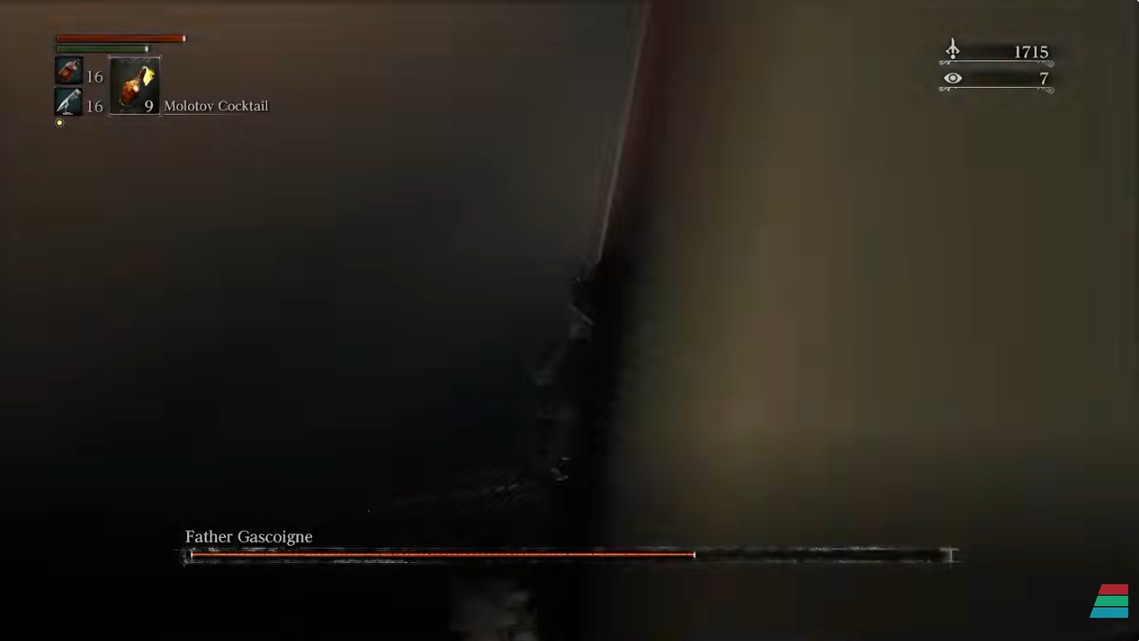
The second video at timestamp 3:16 deals with this issue. However, since the video was recorded, the mod that is recommended in the video is now depreciated and instead you should use the option “disable Facegen” in the Patches & Cheats menu instead:-
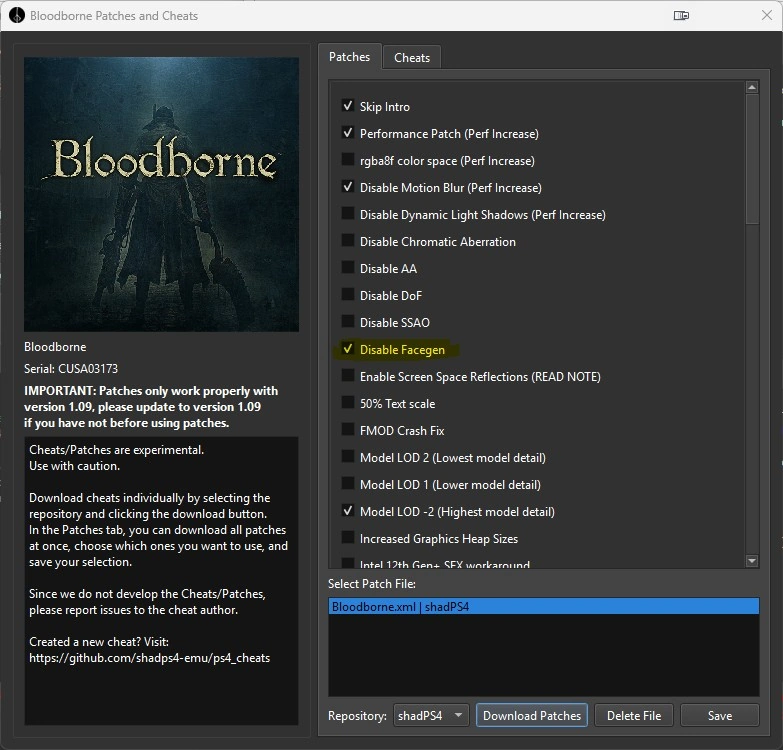
The downside to this fix is that it causes bugs within the games character creator. As you create the character, you may not be able to see the character model you’re creating, or it may appear all in white like a ghost. If you want to create a new character, try to temporarily disable this fix and then re-enable it once you get in game.
If the character creator still won’t work even with this fix disabled, try a different build of ShadPS4, or try the option “Readbacks” which is available on “ShadPS4” settings under “Game-Specific and Experimental settings” (also mentioned in the second video at timestamp 3:31).
Even on a fast PC we found that using Readbacks caused frequent slowdowns. Our gaming PC is an AMD Ryzen 9 5900X equipped machine with 32GB RAM and RTX 4090 GPU. With the Readbacks setting disabled, the game ran very smoothly at 60 frames per second. We only experienced FPS drops entering new areas. Overall, the performance was much better than on the original PS4 console that the game was designed for. With the Readbacks setting enabled however, the frame rate drops became much more frequent. While our test machine is still no slouch, this PC isn’t cutting edge any more, so if you’re lucky to have a more powerful CPU you could give it a try, but for most players we’d recommend disabling Readbacks as soon as they were done with the character creation process.
Screenshots
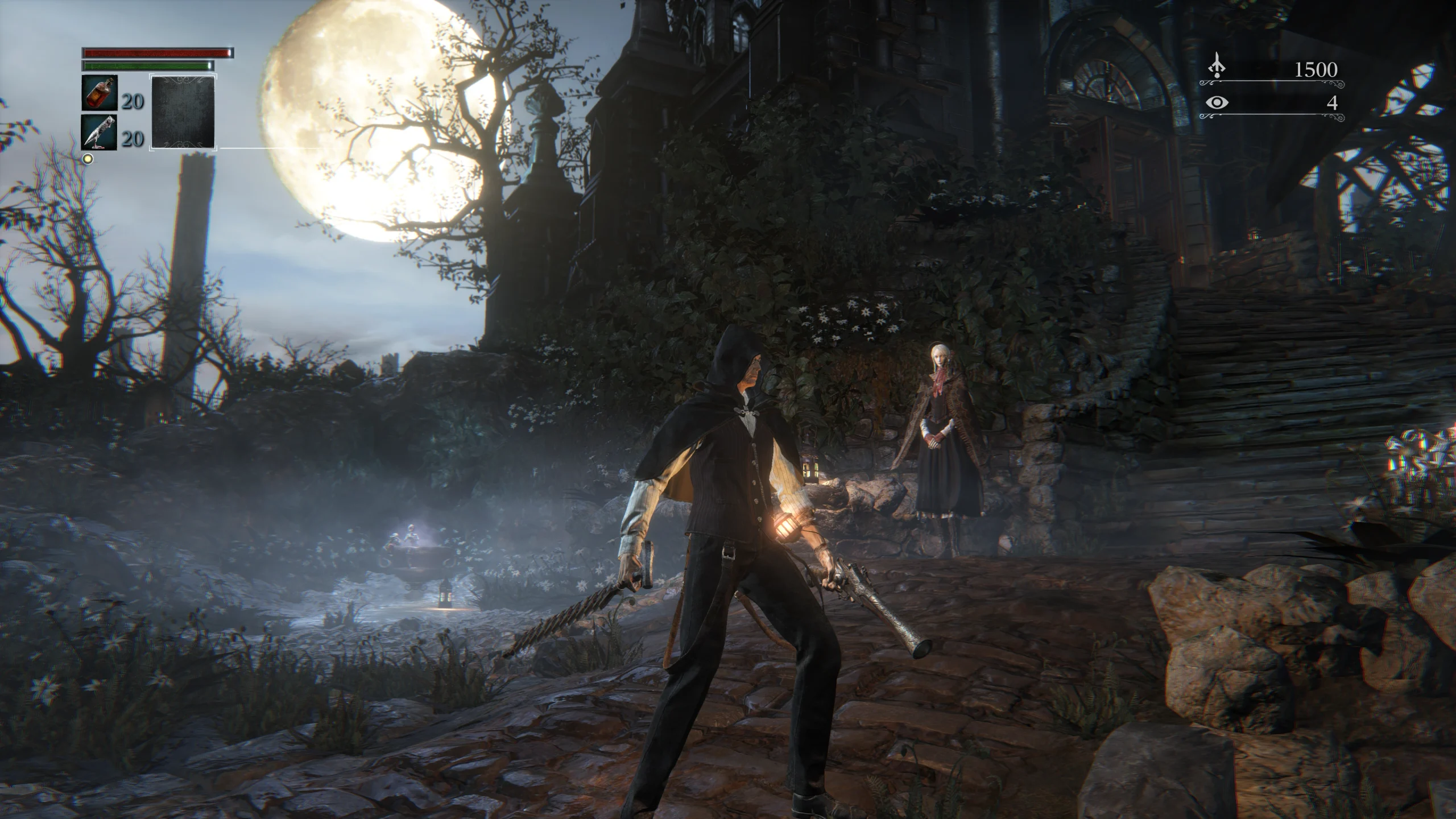
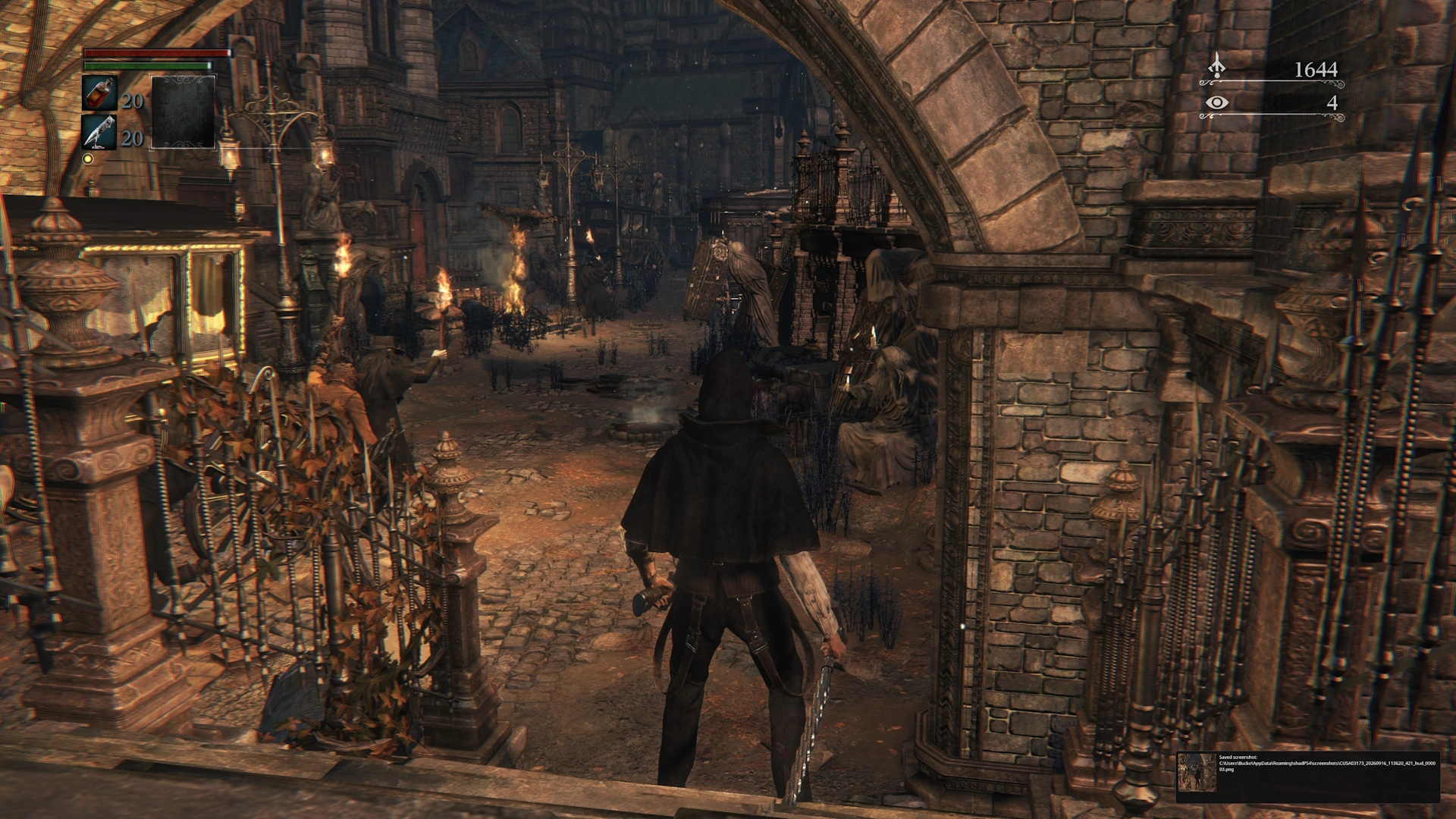
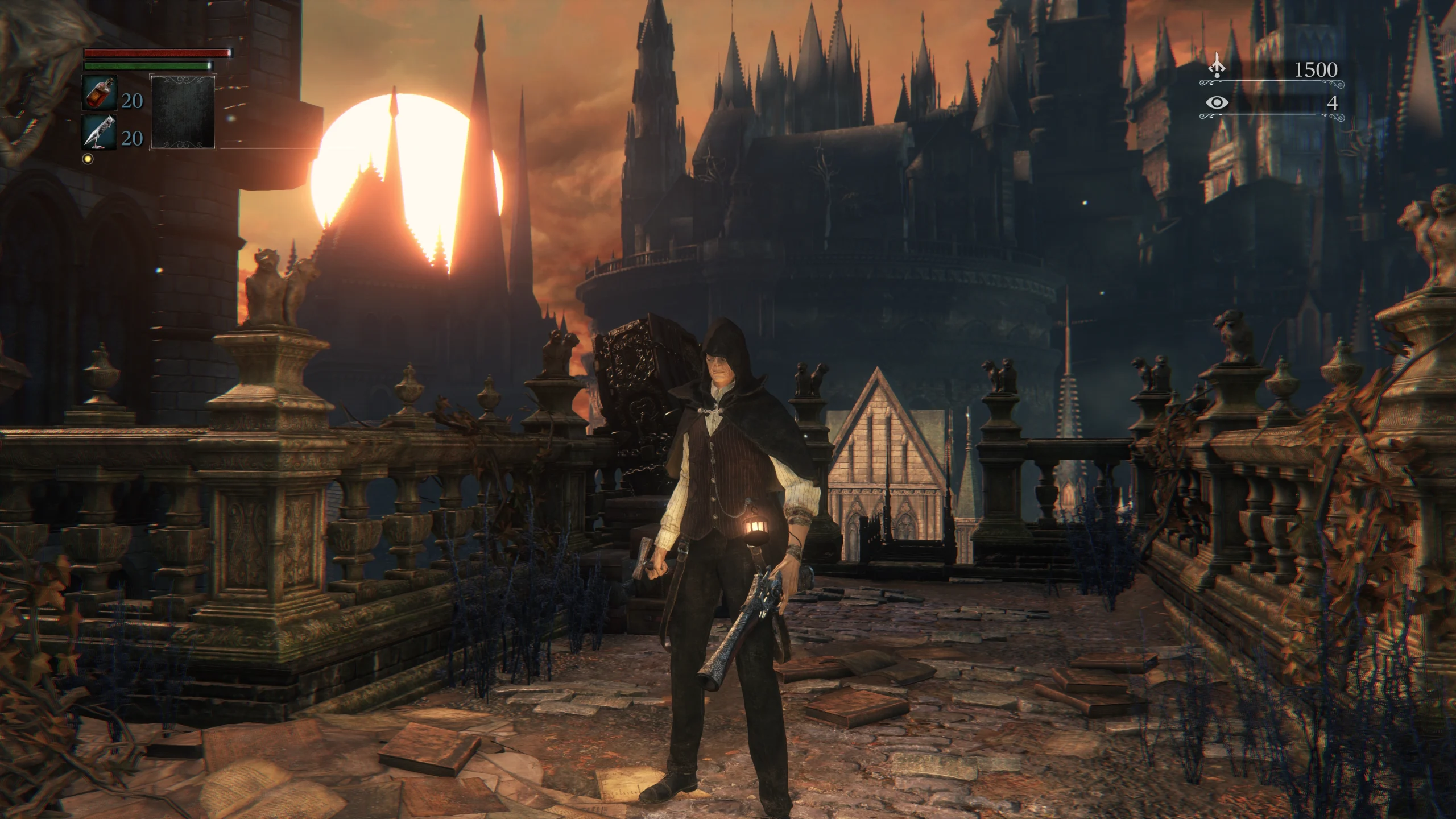
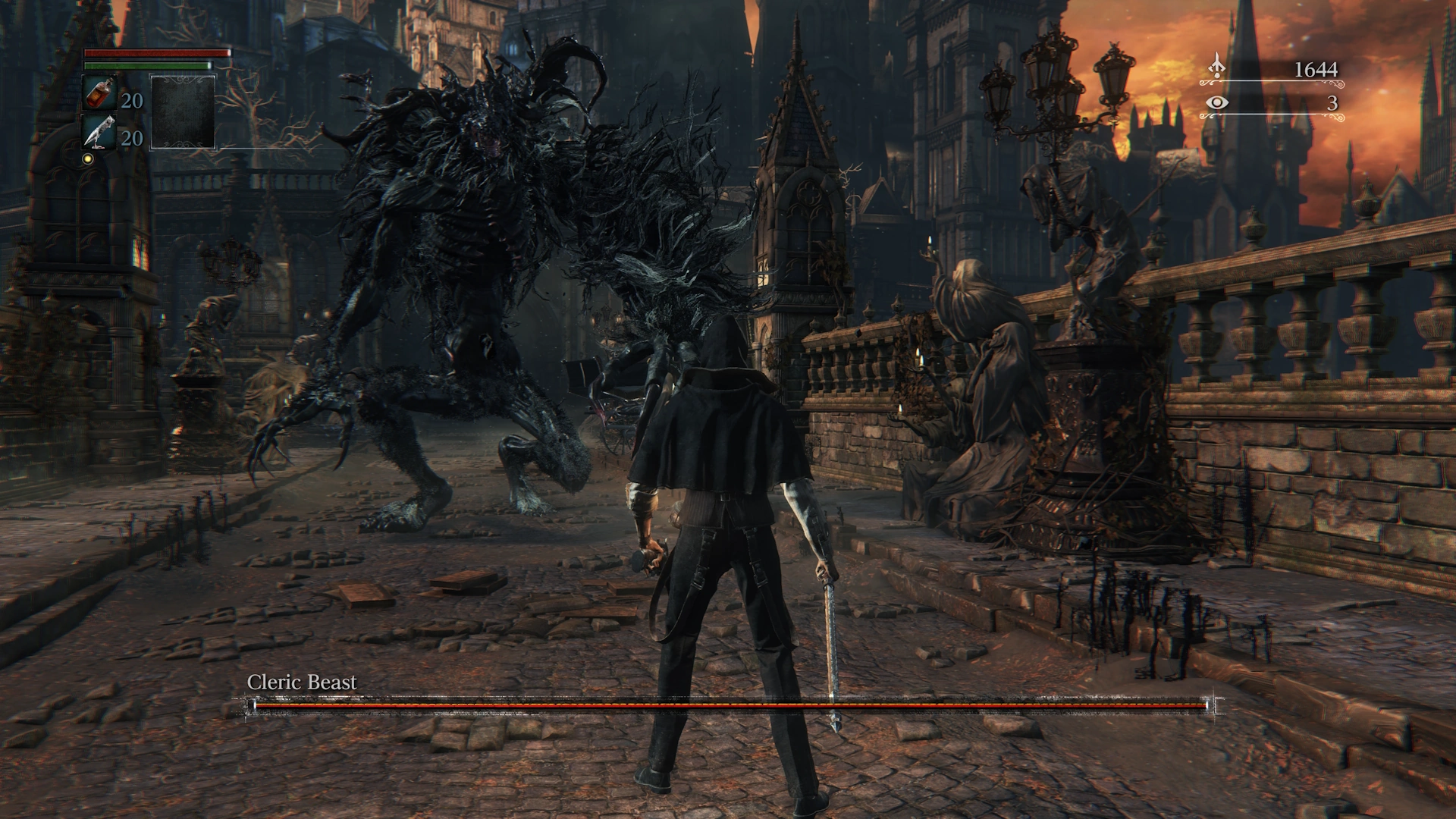
These screenshots were taken in 4K with BB PC Remaster, Reshade and ShadPS4 V0.17.0. Click/tap on any screenshot to enlarge it.