
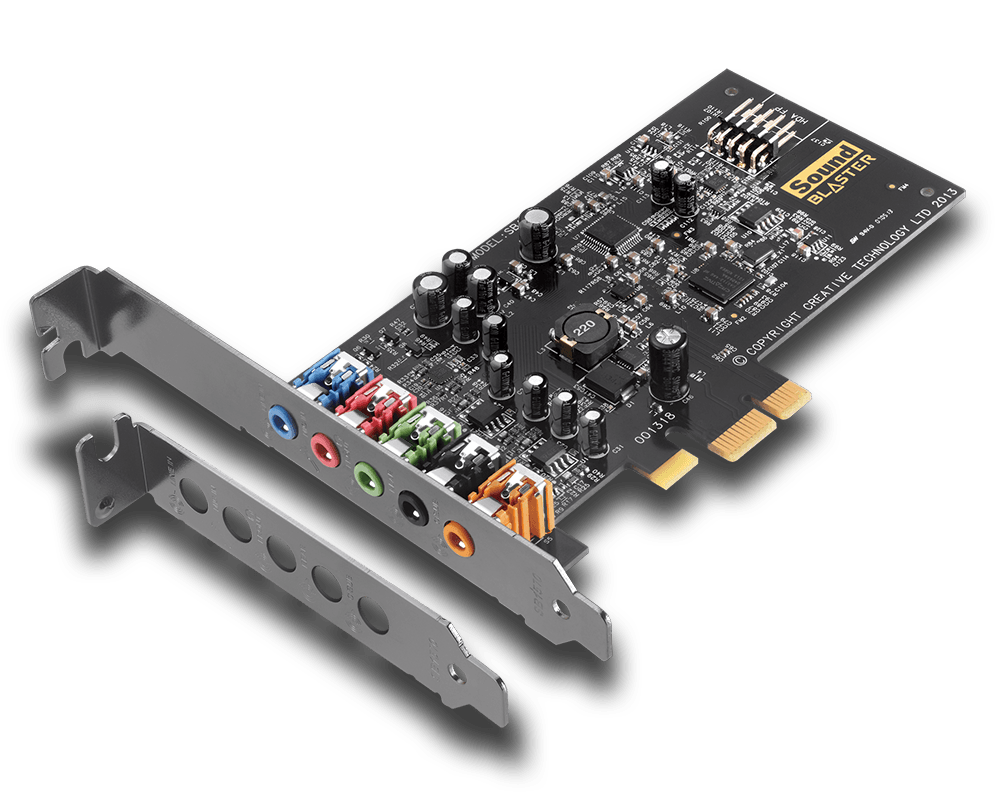
DSAOL is a replacement DLL library for games that used the old and now defunct Directsound and EAX hardware accelerated audio standard. Microsoft depreciated hardware acceleration for audio in Windows Vista, breaking surround sound in many older games. Creative Labs, who were the market leader in sound cards back when Vista launched, made their own software tool called ALchemy, which fixed the issue for most games but only works on Creative sound cards.
DSAOL is a similar solution but one that works on all sound cards, not just Creative Labs ones. With modern GPUs able to send audio over HDMI or DVI, many users do not have use for a sound card at all, so a solution like this is particularly useful on modern PCs.
Using DSAOL
Using the app isn’t terribly difficult but can be a little confusing for novice PC users. Not one but two downloads are required; DSAOL itself and OpenAL.
Start by downloading DSAOL from the “latest master” release page here.
You can download either the zip or the 7-zip package at the bottom of the page, if in doubt, go for the zip archive.
Once downloaded, extract the archive to any convenient location (right click and choose “extract all”). You will probably find another zip file within the zip file, so extract this too. This should leave you with two folders:-
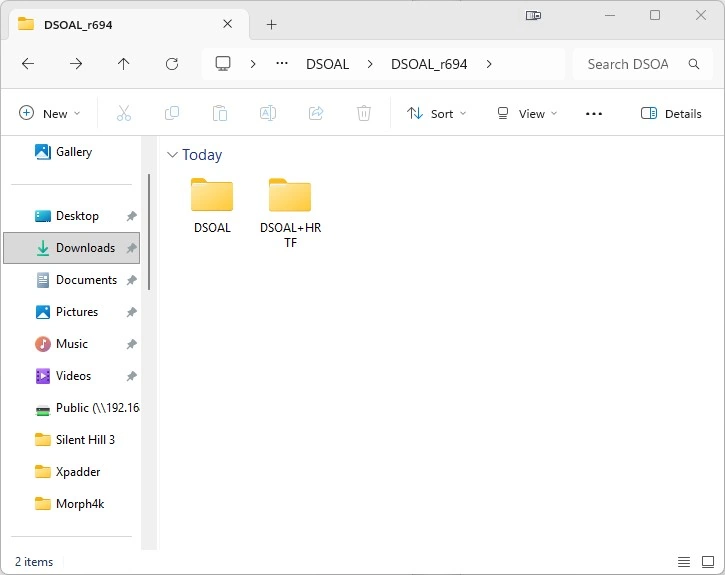
HRTF stands for “head-related transfer function”. As far as we can tell, this is a technology for mapping surround sound audio in stereo, usually for headphones. If you’re using headphones then use the “DSAOL+HRTF” folder, otherwise use the “DSAOL” folder.
Double click the folder to open it, you will see three other folders inside:-
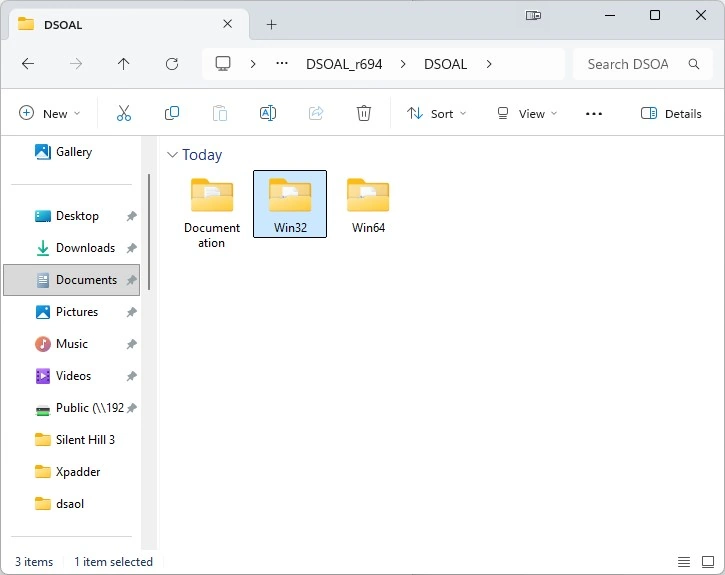
If your game is a 32 bit game, you should open the Win32 folder. If it is a 64 bit game, open the Win64 folder instead. Almost all older games are 32 bit, so that will almost always be the folder you need.
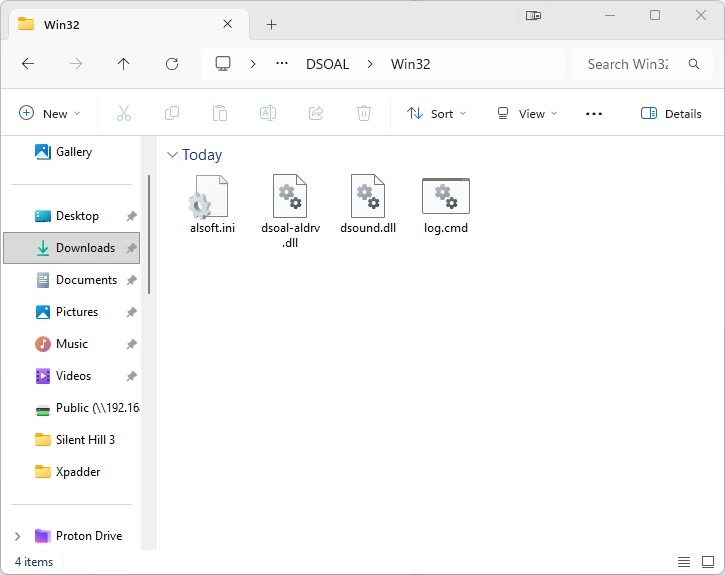
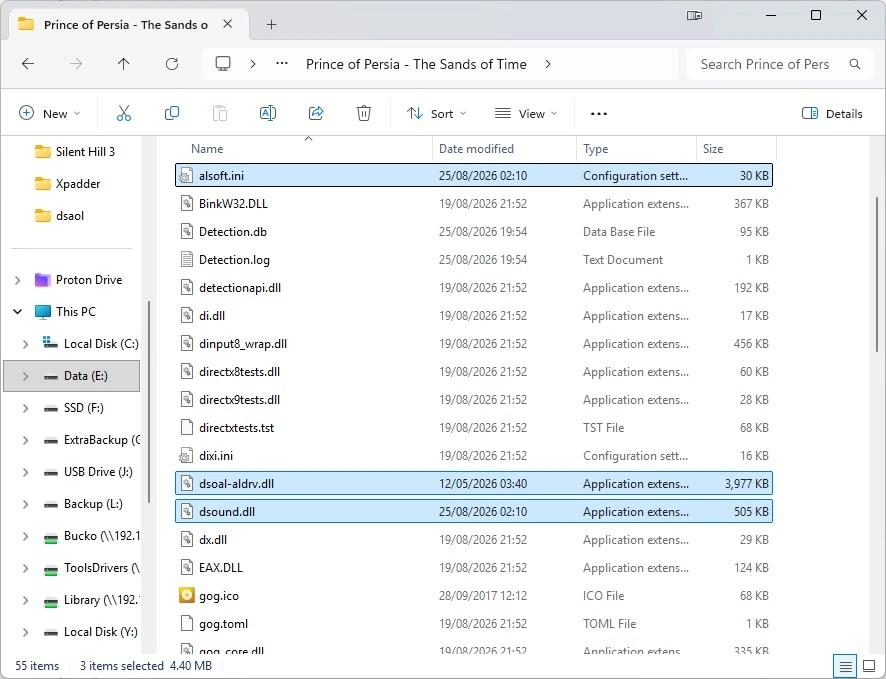
Copy these files from this folder into the folder where your games executable file is installed. For almost all games this is the games installation folder, though some games do store their executable in a sub folder.
The picture below shows the files copied into the game folder for “Prince of Persia – The Sands of Time”.
We’re not quite done yet however, we need one more DLL file. Go to the OpenAL Soft homepage and download the latest Win32 and Win64 binaries. Make sure you get the Windows binaries (the file should be called “openal-soft-1.25.2-bin.zip” or similar).
Once you have downloaded this file, unzip it and open the folder that is created. You should see the following files:-
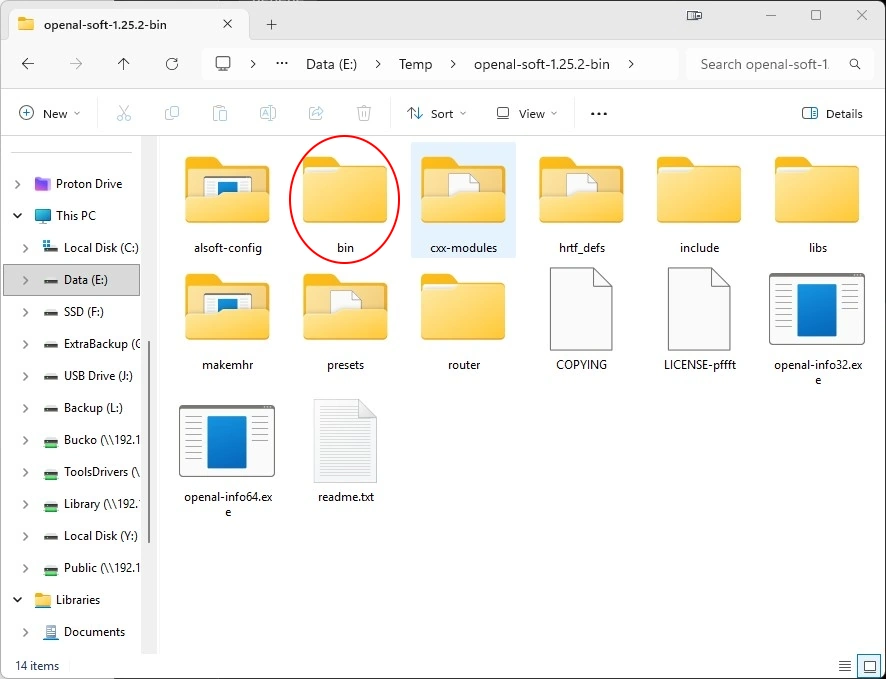
Open the “bin” folder. You will see two folders “Win32” and “Win64”. If your game is a 32 bit game (almost all old games are) then open the “Win32” sub-folder. There should be just one file inside this folder, “soft_oal.dll” (this may appear simply as “soft_oal” if you have file extensions hidden).
Copy this file to your games installation directory. Here is the DLL file in our “Prince of Persia – The Sands of Time” game folder.
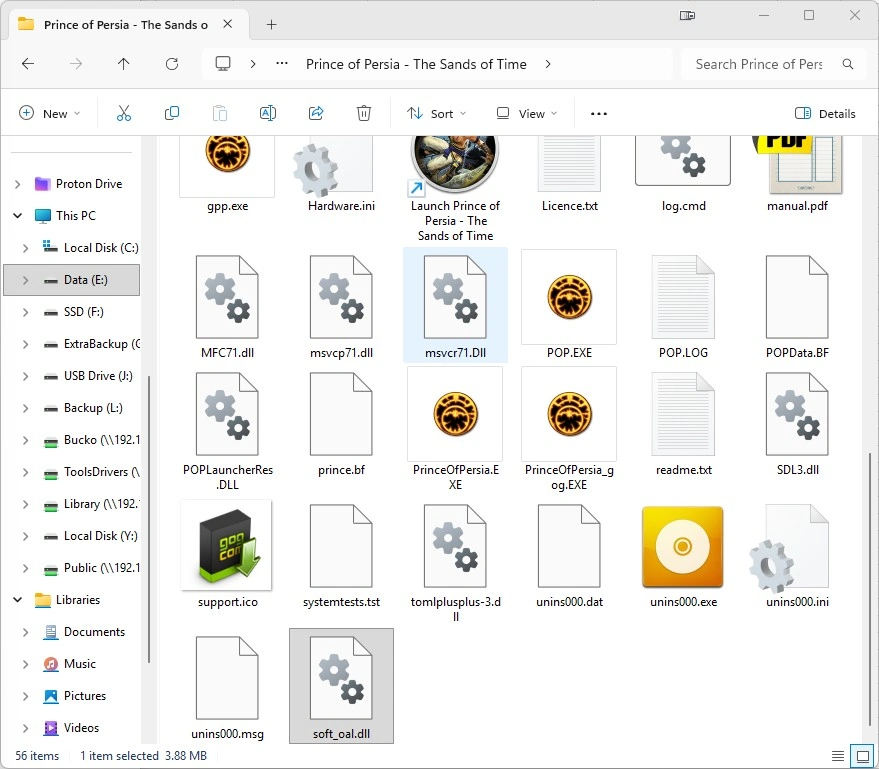
Finally, rename the file from “soft_oal.dll” to “dsoal-aldrv.dll”.
Everything is now set, try to start the game and enable surround sound/EAX again. In our tests so far DSAOL wasn’t as effective as the old Creative ALChemy system but it definitely benefits from not needing a Creative sound card in order to function at all.